PhotoCraft Download — Free, Open-Source Photoshop Alternative

PhotoCraft is an open-source, clean-room reimplementation of Adobe Photoshop written in pure Rust. Menus, panels and shortcuts sit where Photoshop users expect them, and it opens, edits and saves layered PSD documents — natively on Windows, macOS, Linux and in the browser.

  • 81,328 stars
  • Latest: v0.23.1
  • Released Nov 12, 2026
  • License: Apache-2.0
  • Alpha
  • Ready for real work: ~45%
  • Checked against GitHub 14 min ago
Download PhotoCraft
v0.23.1 · Released Nov 12, 2026
from official GitHub Releases
macOS · Homebrew: brew install --cask photocraft

Unofficial guide — not affiliated with ArtCraft, Adobe, Microsoft or any other vendor. All downloads link to the official GitHub Releases.

↓ Read our hands-on PhotoCraft review: benchmarks and problems we hit

Source on GitHub Official page ↗

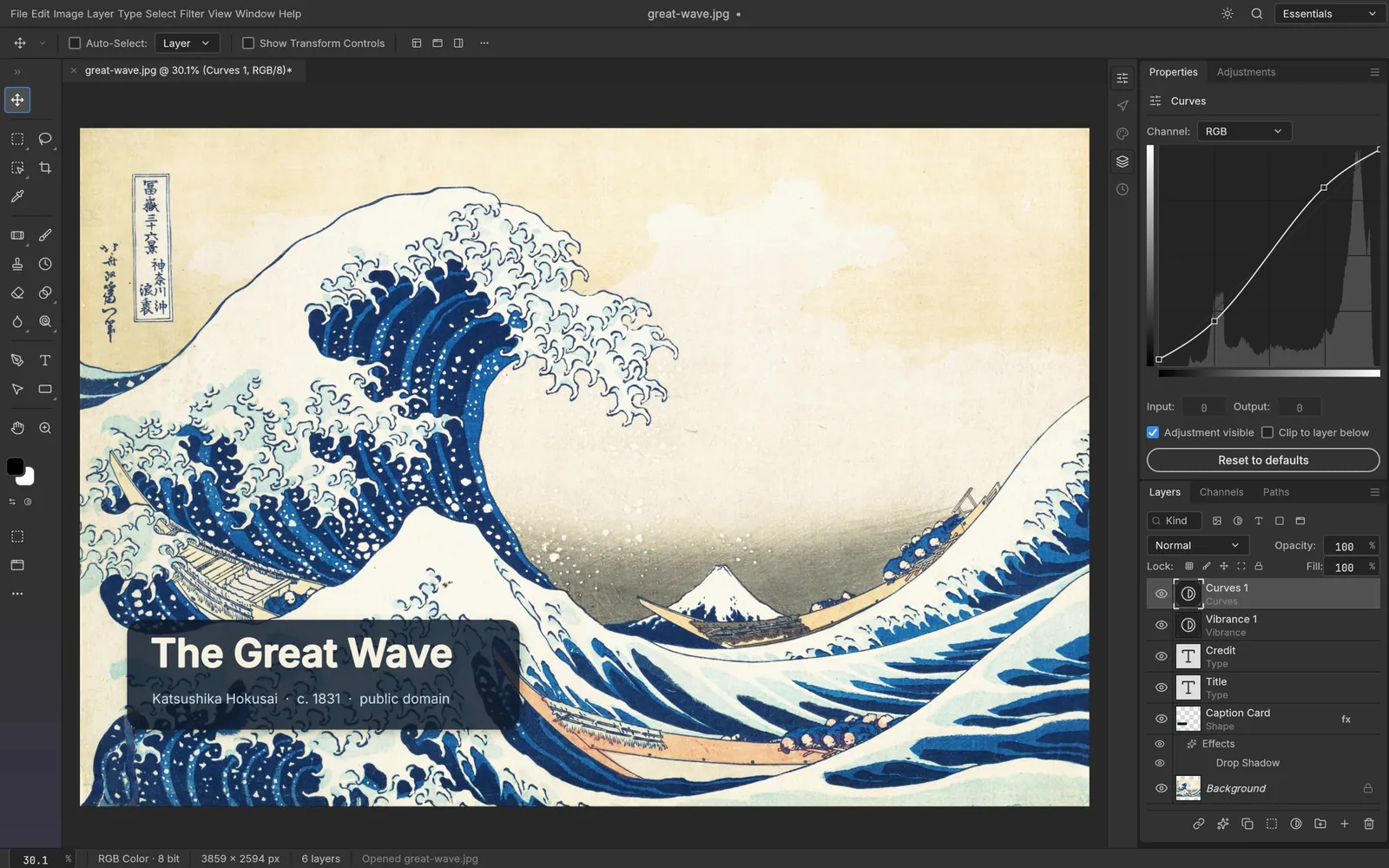
PhotoCraft screenshot — open-source Photoshop alternative
Screenshot from the official PhotoCraft repository (MIT / Apache-2.0)

PhotoCraft features

Real PSD files

Open, edit and save layered Photoshop documents. Re-saving keeps the render of 307 of 309 psd-tools test files.

Non-destructive editing

Adjustment layers (Levels, Curves, Vibrance, Hue/Saturation…), layer masks, smart objects and smart filters.

Layer styles

Drop Shadow, Glow, Bevel & Emboss, Satin, Stroke and Color/Gradient/Pattern Overlay — live on any layer, including type.

Smart selections, offline

Magic Wand, Quick Selection, Object Selection, Select Subject and Select and Mask — run locally, no cloud or account.

Type & vectors

Point and paragraph text edited on canvas, shape layers, the Pen tool and boolean path operations.

Native & fast

GPU compositor on wgpu (Metal, Vulkan, DX12, WebGPU). No Electron, no web view.

Hands-on review

PhotoCraft 0.9.0 tested: PSD compatibility, speed and the problems we hit

Version tested: PhotoCraft 0.9.0 · Tested on Oct 20, 2026 · Machine: Ubuntu 24.04, 4 vCPU, 16 GB RAM, no GPU (software rendering) · Screenshots and recordings by CraftSuite · How we test

The verdict

  • PSD support is the headline. Of the 316 PSD/PSB files in the psd-tools test suite, PhotoCraft opened 315, and 257 of them rendered almost identically (under 1% difference) to the composite Photoshop itself saved. On the same files GIMP 2.10 opened 243 and matched 103.
  • It is fast. Open a 24-megapixel photo, blur, resize by half and save as JPEG: 2.1 s from PhotoCraft’s command line, against 6.5 s for ImageMagick and 6.7 s for GIMP. An empty window appears in 0.25 s.
  • It is still an alpha. We hit a missing Linux library, a GPU fallback prompt, a Select Subject that skipped dark areas, camera raw files it can’t read and substituted fonts in PSD text layers. Fixes for each are below.

Test machine and files

We ran every test ourselves, with the official Linux AppImage from GitHub Releases (photocraft-0.9.0-linux-x86_64.AppImage, 77 MB).

Operating systemUbuntu 24.04.5 LTS (x86_64), X11 session
CPU / RAM4 virtual CPU cores, 16 GB RAM
GraphicsNo GPU: Mesa llvmpipe (software Vulkan / OpenGL)
BuildsThe official Linux AppImage of each app from GitHub Releases; ArtCraft built from source
BaselinesGIMP 2.10.36, ImageMagick 6.9.12, MuPDF 1.23.10, Poppler 24.02, qpdf 11.9, Ghostscript 10.02, Tesseract 5.3.4

All test material is public, so anyone can repeat the tests: the psd-tools PSD test suite (316 files, MIT licence); a NASA astronaut portrait (public domain), the coffee and cat photos from scikit-image (CC0) and the Kodak test image set (released for unrestricted use); and a 6000×4500-pixel JPEG for the speed tests.

First launch and interface

On a fresh Ubuntu install PhotoCraft refused to start, with a clear message: libxkbcommon-x11.so.0 was missing, fix it with sudo apt install libxkbcommon-x11-0. After that it started, noticed our machine had no GPU and said it had switched to CPU rendering and that open documents were unaffected. After we chose “Keep Using CPU” it didn’t ask again.
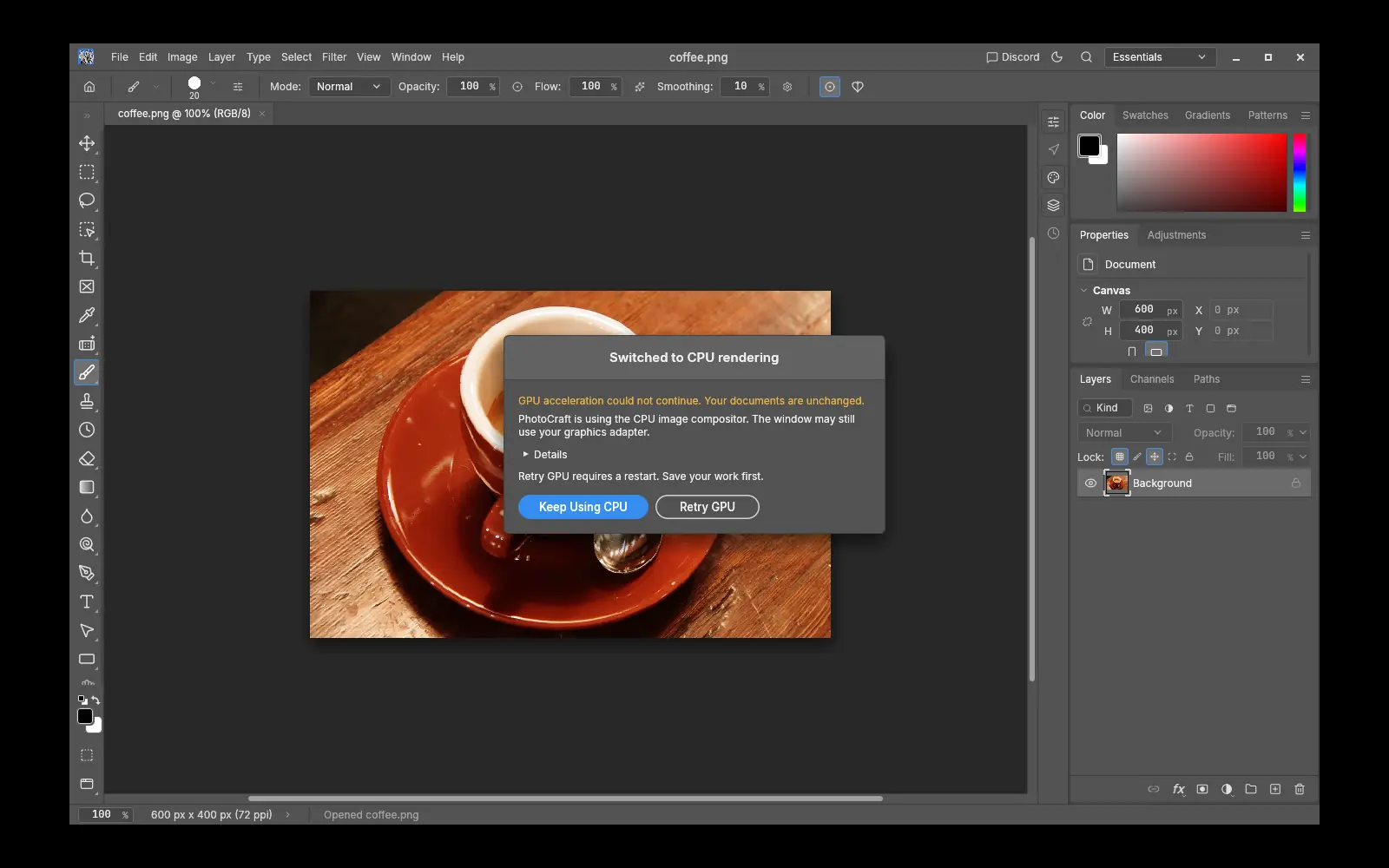
PhotoCraft dialog saying it switched to CPU rendering, with Keep Using CPU and Retry GPU buttons
What you see without a usable GPU: keep CPU rendering, or retry the GPU after a restart. Screenshot: CraftSuite.

The interface is Photoshop’s, almost panel for panel: tools on the left, the options bar on top, Color / Properties / Layers on the right, and the same menu structure. Layer → New Adjustment Layer lists the same 16 adjustments in the same order (Levels, Curves, Vibrance, Black & White, Photo Filter, Channel Mixer, Color Lookup…). The shortcuts listed in the menus match Photoshop’s too, for example Ctrl+G to group layers, Ctrl+Alt+G for a clipping mask and Ctrl+Shift+S for Save As.
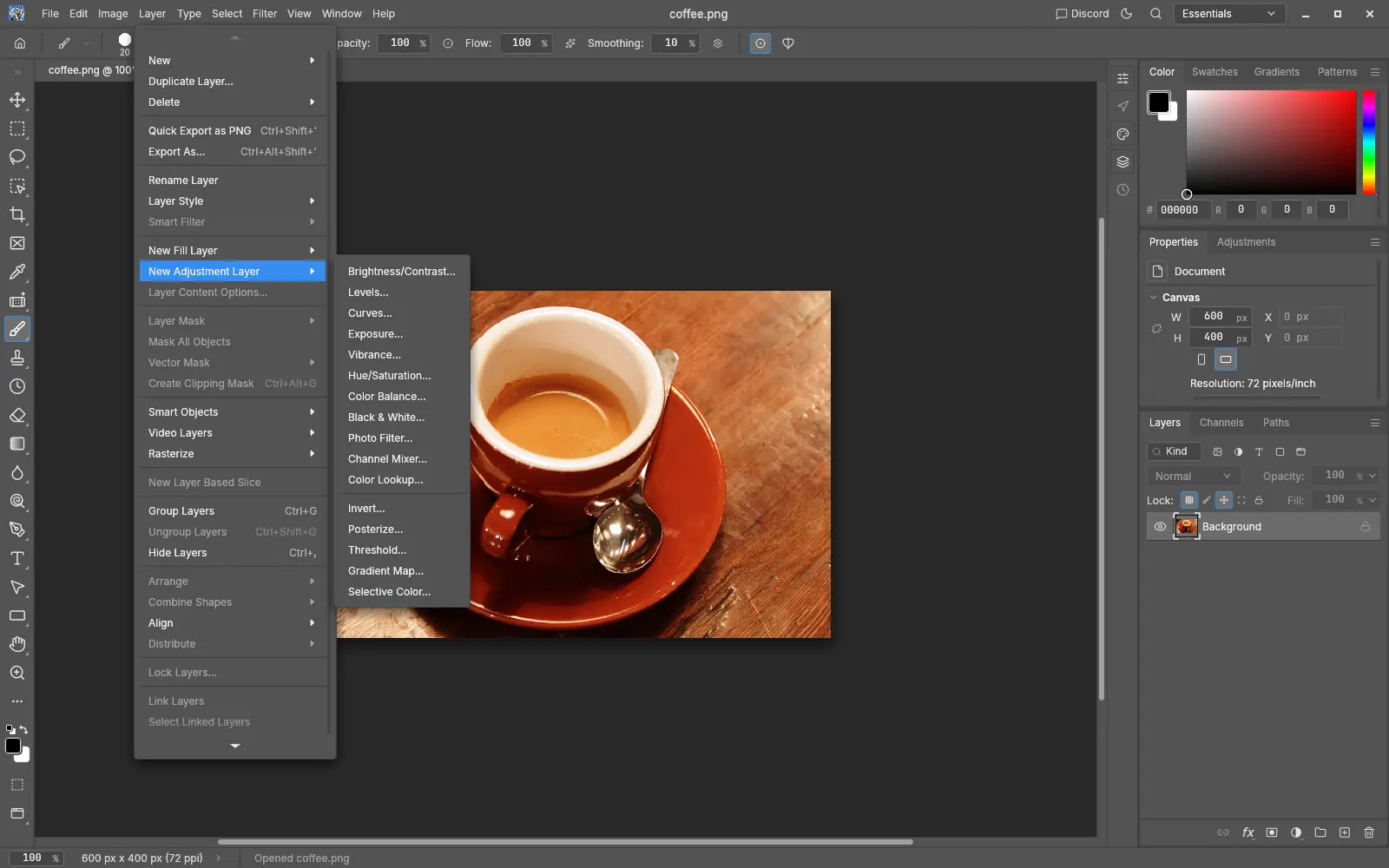
PhotoCraft Layer → New Adjustment Layer menu listing Brightness/Contrast, Levels, Curves and other adjustments
Layer → New Adjustment Layer, laid out like Photoshop’s. Photo: coffee (CC0). Screenshot: CraftSuite.

PSD compatibility: 316 files tested

The PhotoCraft README says that re-saving keeps the render of 307 of the 309 psd-tools test files. We wanted to check for ourselves, so we took the current psd-tools suite: 316 PSD and PSB files covering layer styles, blend modes, masks, adjustment layers, 16- and 32-bit depth, CMYK and Lab. For each file we:

  1. pulled out the composite preview Photoshop stored in the file (with ImageMagick) as the reference;
  2. had PhotoCraft re-render the file from its layers with photocraft-cli convert;
  3. opened it in GIMP 2.10.36, merged the visible layers and exported it, for comparison.

Then we compared each render with the reference pixel by pixel (root-mean-square difference, composited on white):

OpenedMatches Photoshop (< 1% difference)< 3% difference
PhotoCraft 0.9.0315 / 316257272
GIMP 2.10.36243 / 316103106

Layer styles make the biggest difference. Here is layer_effects.psd from the suite: PhotoCraft draws Bevel & Emboss, Outer Glow, Inner Shadow, the gradient and pattern overlays, Stroke and Satin almost exactly like Photoshop. GIMP 2.10 drops every effect and shows flat text.
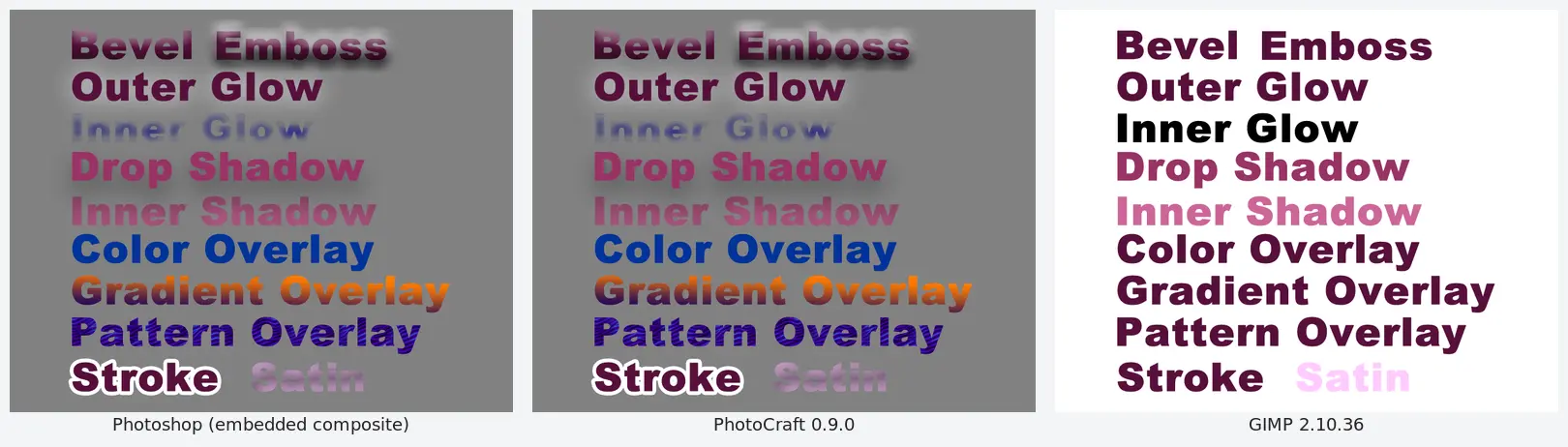
The same PSD rendered three ways: Photoshop’s composite, PhotoCraft 0.9.0 and GIMP 2.10.36; GIMP is missing all layer effects
Left: the composite Photoshop saved in the file. Middle: PhotoCraft 0.9.0. Right: GIMP 2.10.36. File from the psd-tools test suite (MIT).

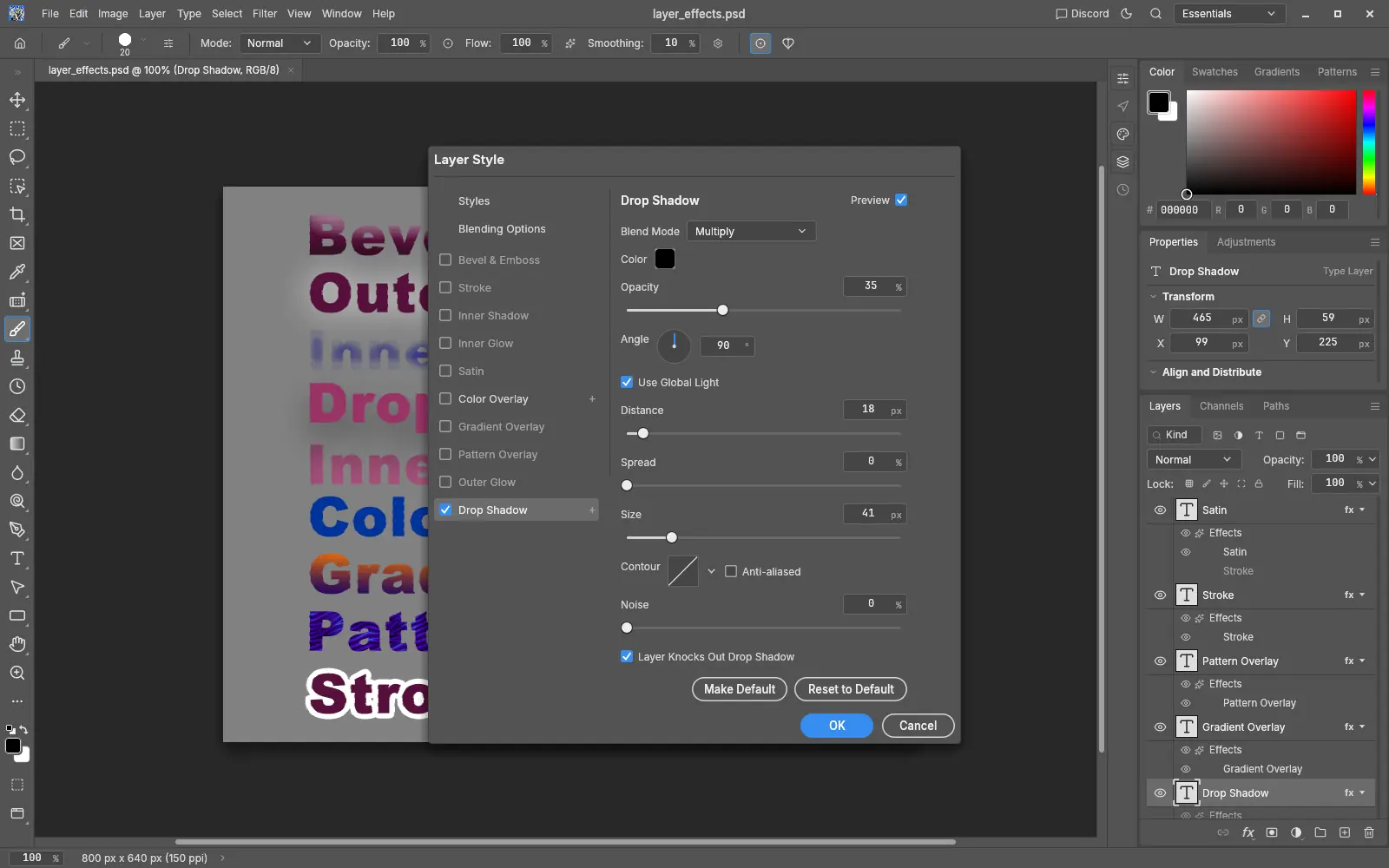
Just as important, the effects stay editable in PhotoCraft. Text is still live type, each effect is listed under its layer, and a double-click opens a Layer Style dialog with the same settings as Photoshop’s.
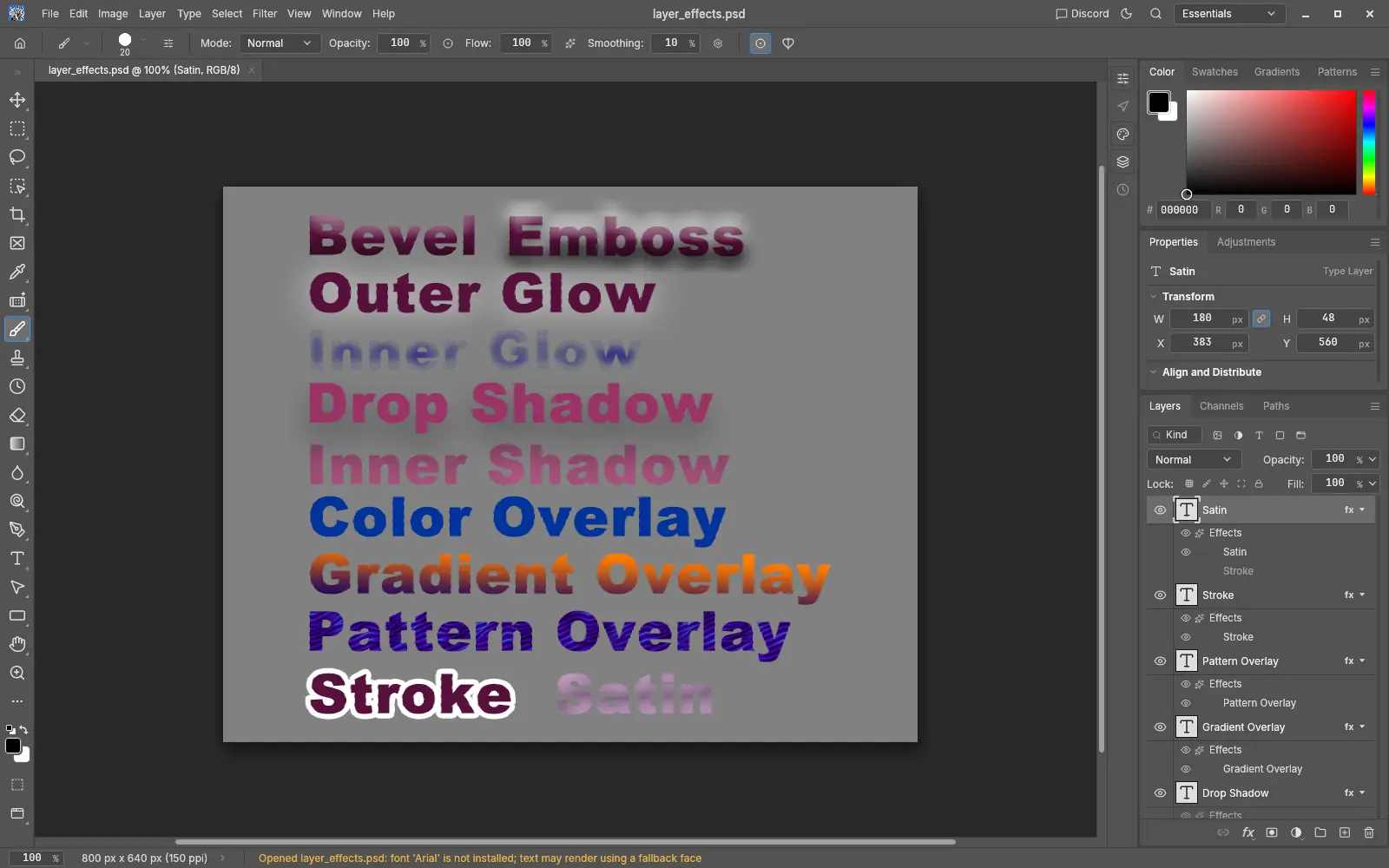
PhotoCraft with layer_effects.psd open; the Layers panel lists each text layer’s effects and the status bar warns that Arial is not installed
Type layers and effects remain editable. The status bar notes that Arial isn’t installed on our machine and a fallback face is used. Screenshot: CraftSuite.
PhotoCraft Layer Style dialog editing a Drop Shadow: blend mode, opacity, angle, distance, spread and size
Layer Style → Drop Shadow, setting for setting like Photoshop. Screenshot: CraftSuite.

The one file it couldn’t open was blend-modes/group-divider-blend-mode.psd. Some of the larger differences come from files saved without “Maximize Compatibility”, whose stored preview is blank, so they say nothing about PhotoCraft. But some are real rendering differences, for example a few solid-colour fill layers and the Dissolve blend mode. If a PSD is going to a client, still check it before you send it.

The command-line converter took a median of 43 ms per test file, process start included; converting all 316 files to PNG one by one took about 22 s in total.

Everyday editing: adjustments, filters, Liquify, selections

Adjustment layers. A Curves adjustment layer is edited right in the Properties panel, and toggling the layer’s eye shows before and after. One tip: in the default Essentials workspace the Properties panel is short and the curve graph is only a few dozen pixels tall, so it is easy to grab the wrong point. Drag the divider between Properties and Layers down and the graph gets much larger, as in the recording below.
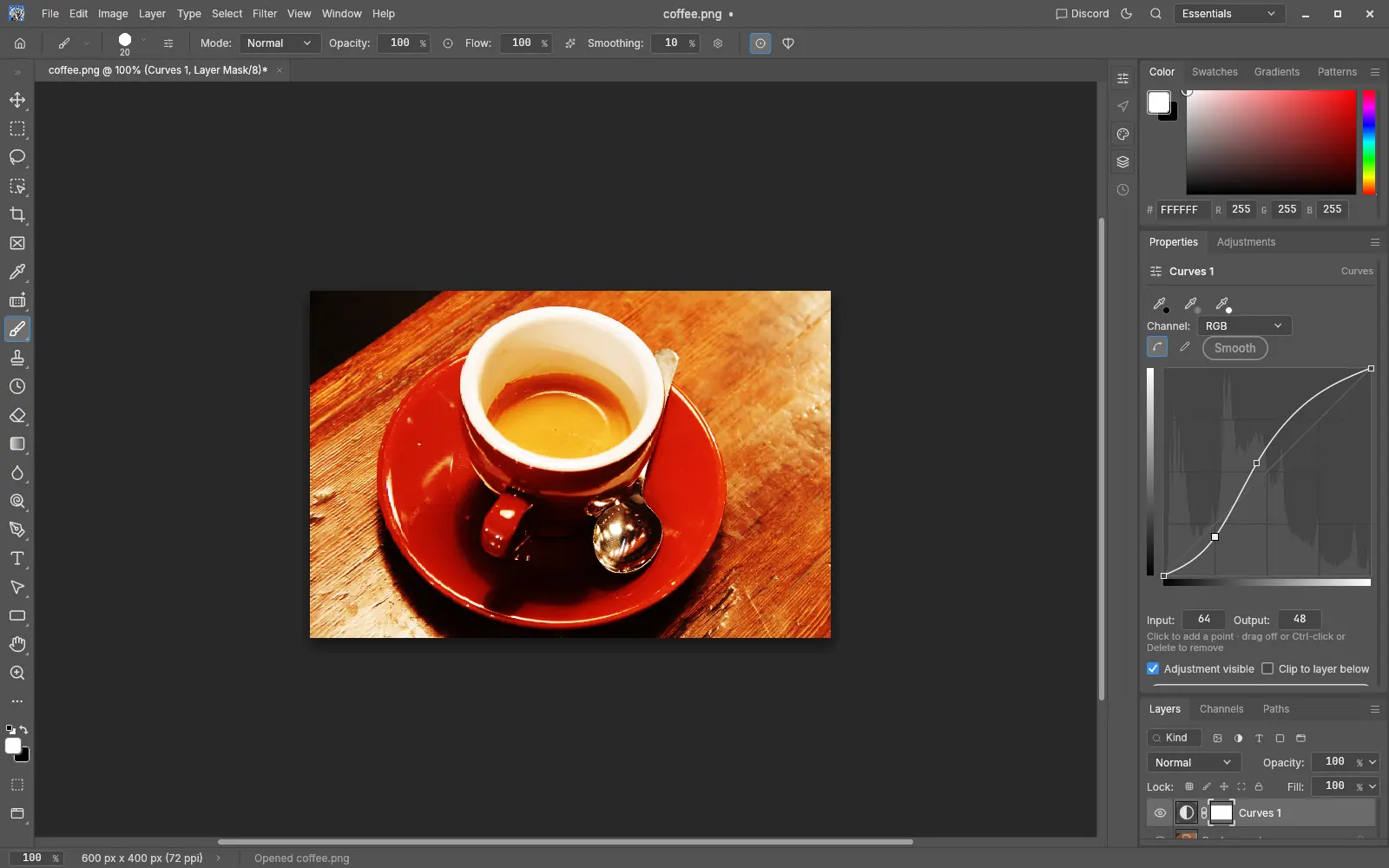
Recording: shaping an S-curve, then toggling the adjustment layer for a before/after. CPU rendering, no GPU. Recording: CraftSuite.
PhotoCraft with an S-curve applied to a coffee photo and an enlarged curve graph in the Properties panel
Editing Curves with the Properties panel enlarged. Screenshot: CraftSuite.

Filter Gallery. Filter → Filter Gallery is a faithful copy of Photoshop’s, with the Artistic, Brush Strokes, Distort, Sketch, Stylize and Texture groups. On a 768×512 Kodak test image each preview took 78–84 ms (the dialog shows it), so it keeps up even without a GPU.
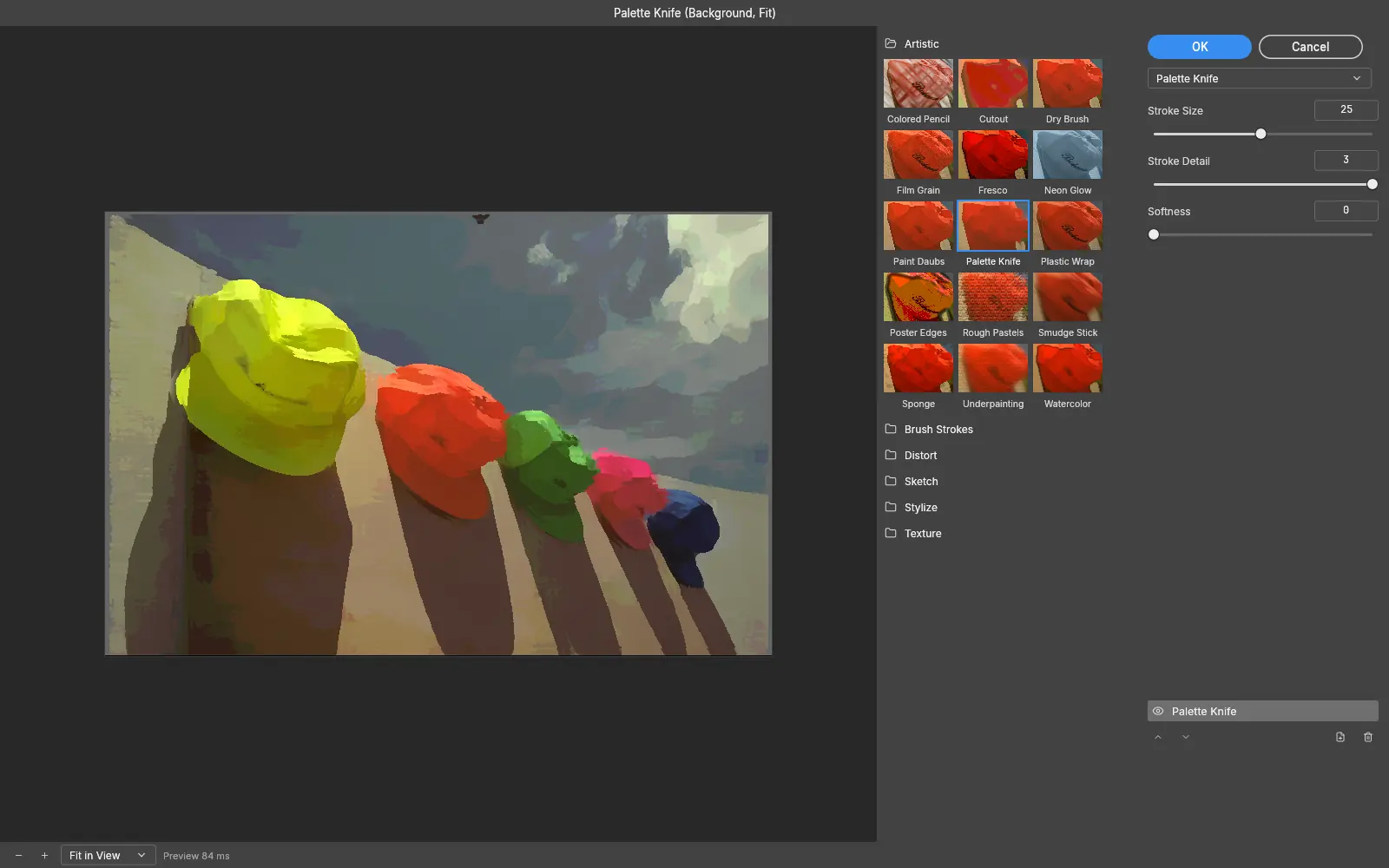
PhotoCraft Filter Gallery applying Palette Knife to a photo of colourful caps, with stroke size, detail and softness sliders
Palette Knife in the Filter Gallery. Photo: Kodak test image set. Screenshot: CraftSuite.

Liquify. Forward Warp, Reconstruct and freeze/thaw masks are all there. The status line reported 0.71 ms per brush dab, and dragging felt smooth on the CPU.
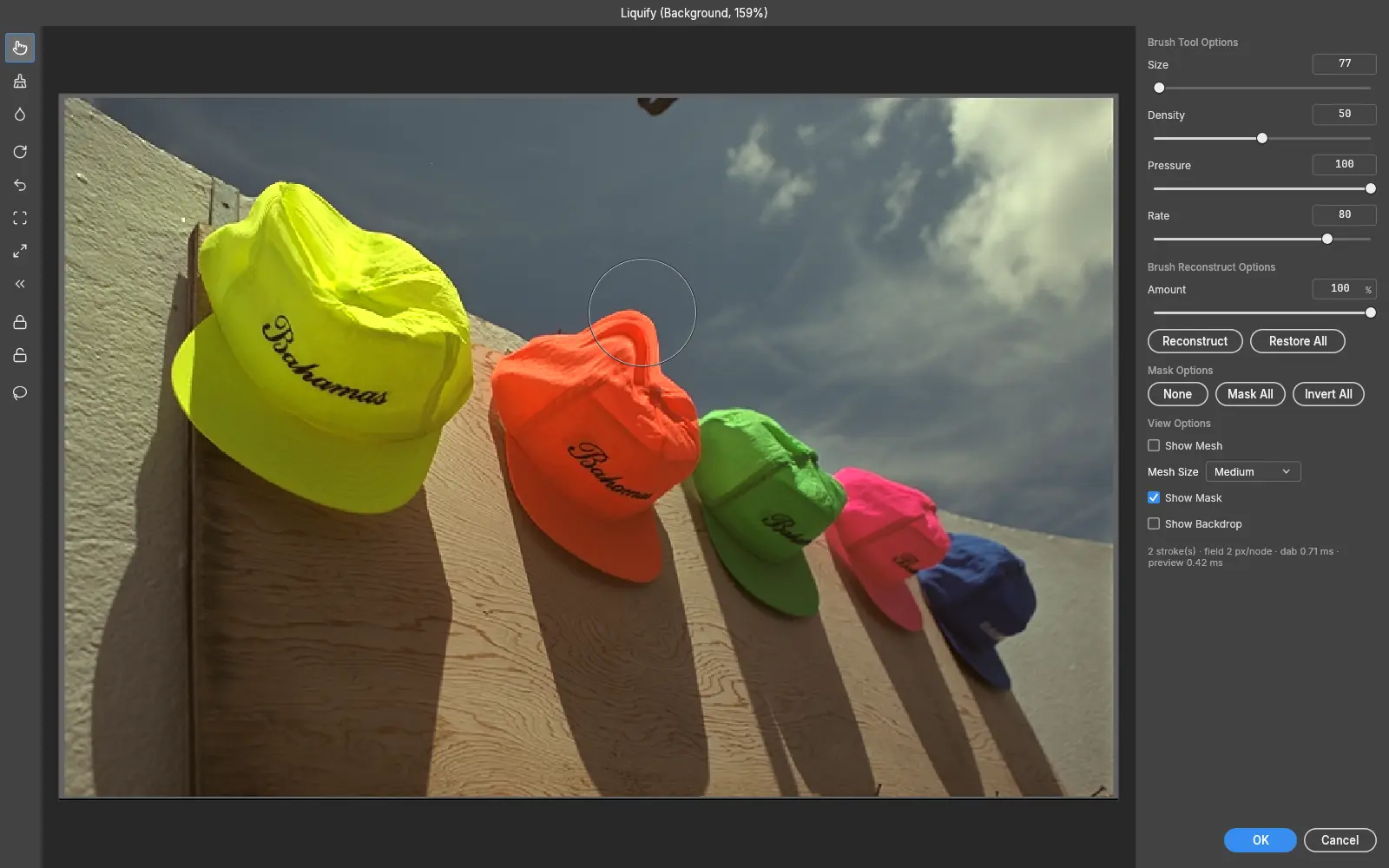
Recording: pushing up the crowns of two caps with Forward Warp. Recording: CraftSuite.
PhotoCraft Liquify window with the red cap’s crown pushed upwards
After Liquify, with the brush and mask options on the right. Screenshot: CraftSuite.

Select Subject and cut-outs. It runs entirely on your machine, with no internet or account, and finished within 3 seconds on our CPU-only machine. On the NASA astronaut portrait it caught the person, the orange suit and the hair outline well.
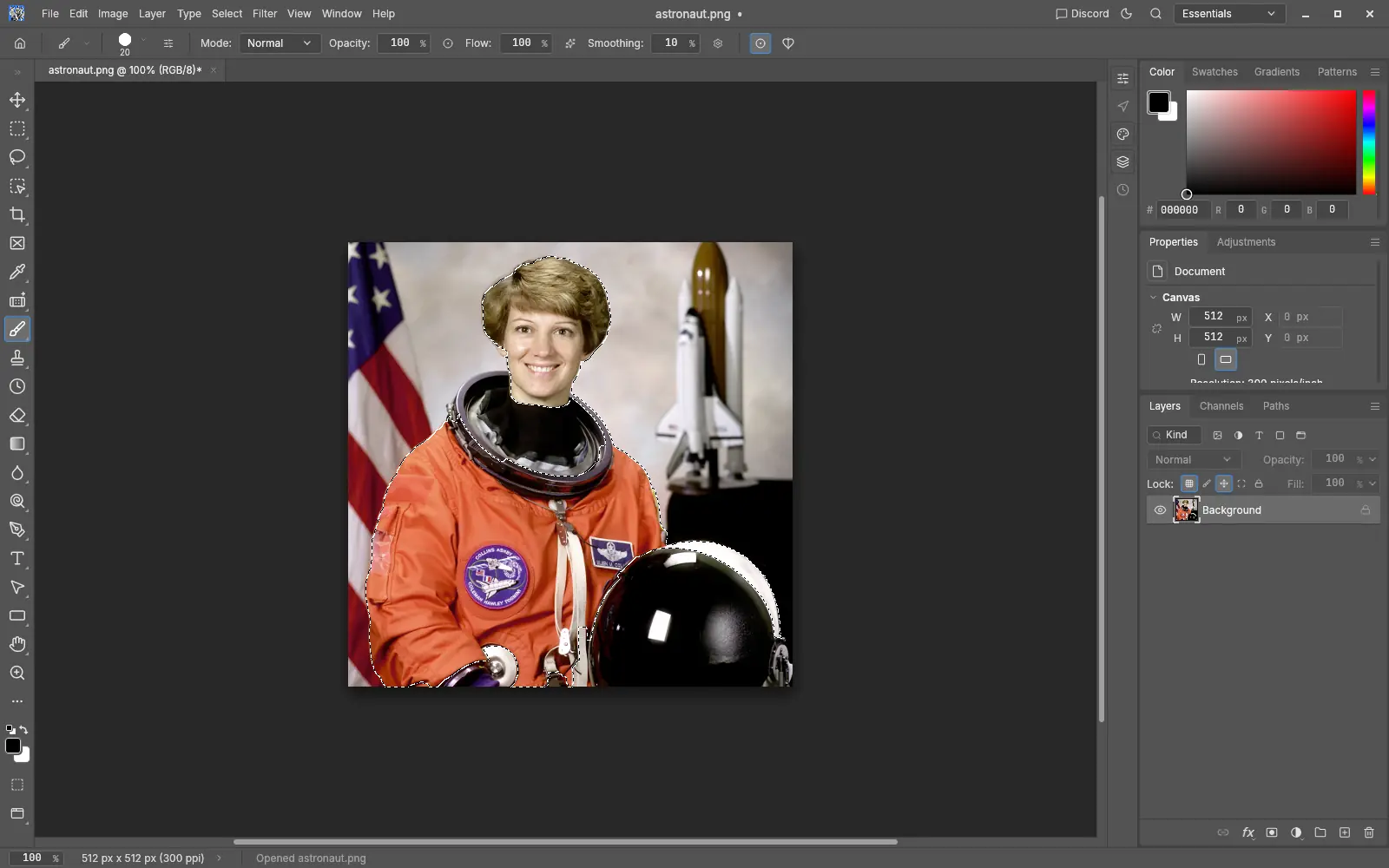
Marching-ants selection around the astronaut after Select → Subject in PhotoCraft
Select → Subject. Photo: NASA (public domain). Screenshot: CraftSuite.

Turning that selection into a layer mask showed the problem: the black collar and the black helmet were almost entirely left out and became transparent holes. With dark objects, or a subject against a dark background, expect to touch up the mask with a brush or add the dark areas with Color Range.
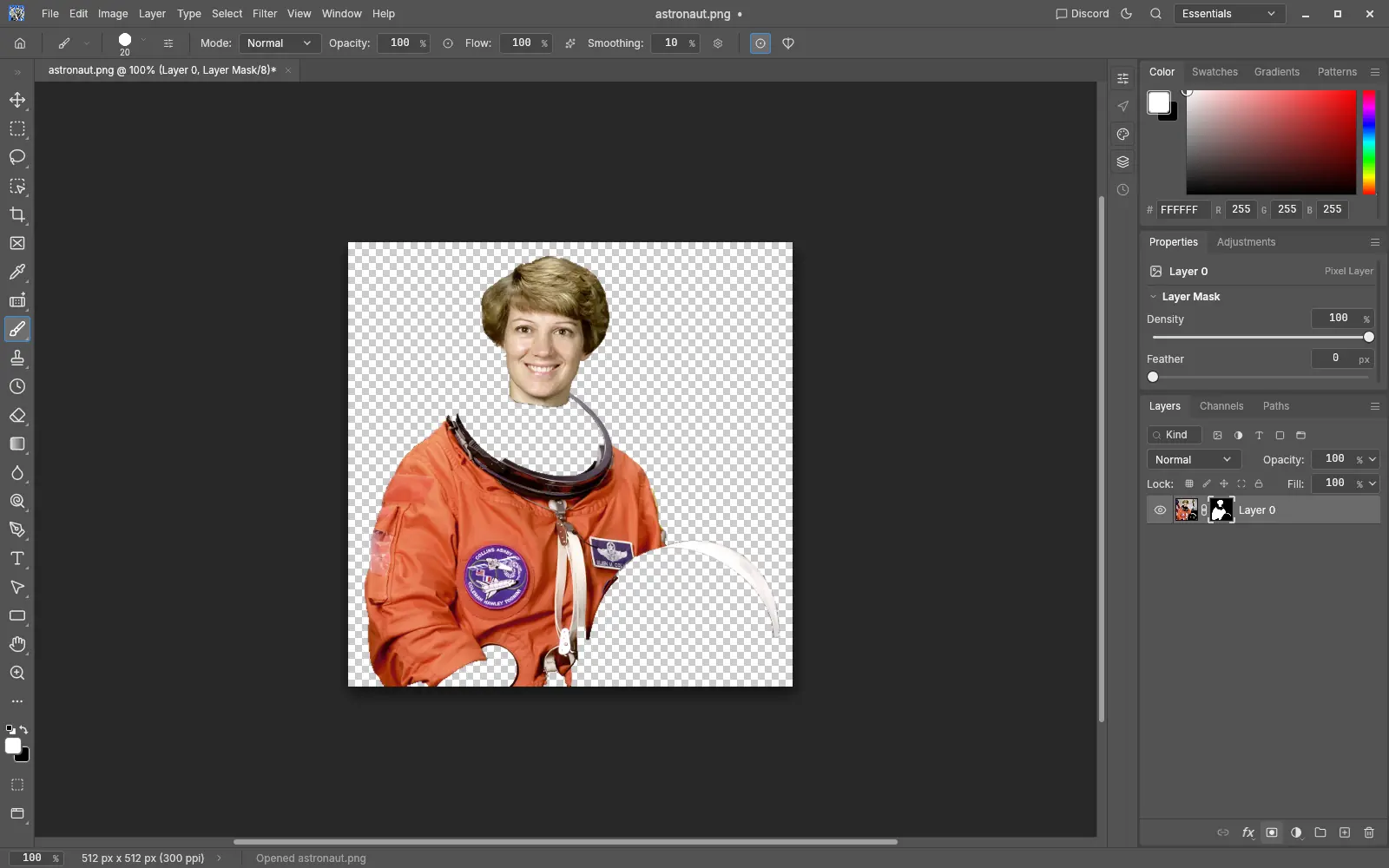
After converting the selection to a layer mask, the astronaut’s black collar and helmet are transparent
Problem: the dark collar and helmet were not selected. Screenshot: CraftSuite.

Export. Export As offers format, transparency, metadata and scale, with a live file-size estimate (about 556 KB for this 768×512 PNG). PhotoCraft also respects EXIF orientation, so phone photos come out the right way up, which ImageMagick only does with -auto-orient.
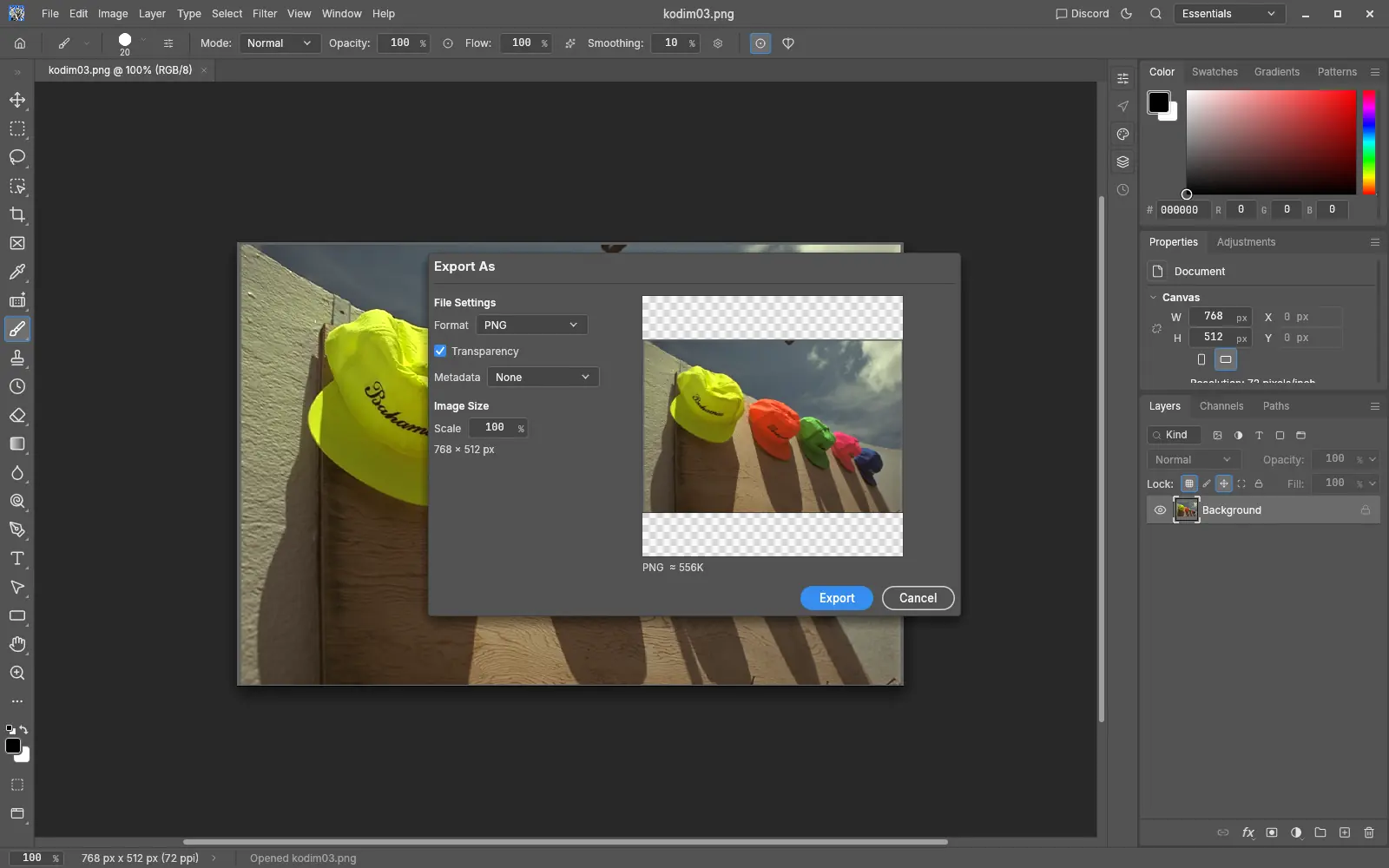
PhotoCraft Export As dialog: PNG, transparency, metadata, 100% scale, estimated 556K
The Export As dialog. Screenshot: CraftSuite.

Performance: PhotoCraft vs GIMP vs ImageMagick

To keep the comparison repeatable we used each tool’s command-line mode for the same job: open a 6000×4500 (24-megapixel) JPEG, apply a radius-10 Gaussian blur, scale to 50% and save as JPEG at quality 90. Each job ran three times and we report the median. The blur settings are each tool’s closest equivalent (sigma 10 in ImageMagick, size 30 in GIMP), and the outputs look equally blurred.

Task (24 MP)PhotoCraft 0.9.0GIMP 2.10.36ImageMagick 6.9.12
Open → blur → resize → save JPEG2.1 s6.7 s6.5 s
JPEG to PNG2.9 s—9.9 s

The desktop app on the same GPU-less machine (median of three runs):

PhotoCraft 0.9.0
Launch to window (empty)0.25 s
Open a 24 MP JPEG from launch to title bar1.5 s
Memory, empty214 MB
Memory, 24 MP photo open386 MB

GIMP 2.10 used about 395 MB with the same photo open, about the same as PhotoCraft. We don’t publish GIMP’s start-up time: on this test machine, which has no desktop message bus (D-Bus), GIMP waits for a timeout on every launch, so the number would not reflect a normal PC.

Camera raw

We tried several raw files from the public imageio test set. The results were weak:

  • A compressed PEF from a Pentax K10D: not supported. PhotoCraft opened the camera’s embedded 3872×2592 JPEG preview instead (8-bit, not sensor data) and said so in the status bar.
  • A lossy-compressed Blackmagic DNG: “unsupported camera raw: lossy (DCT) JPEG compressed raw data”.
  • An old Canon PowerShot CRW: not recognised.

PhotoCraft status bar: Pentax compressed PEF is not supported yet; opened the camera's embedded JPEG preview instead
The status-bar message after opening the Pentax PEF (status bar only). Screenshot: CraftSuite.

If you mostly shoot raw, develop in LightCraft, darktable or RawTherapee first and bring the result into PhotoCraft.

Problems we hit and how to fix them

  1. Won’t start on Linux: libxkbcommon-x11 missing. Run sudo apt install libxkbcommon-x11-0 (Fedora: sudo dnf install libxkbcommon-x11). The message also mentions PHOTOCRAFT_SKIP_LIB_CHECK=1 to force a start; we don’t recommend it.
  2. “Switched to CPU rendering”. The graphics driver isn’t usable (common in virtual machines, remote desktops and on old GPUs). Keep Using CPU works fine, just slower when zooming large images and previewing filters; choose Retry GPU once a driver is installed.
  3. The Curves graph is too small to use. Drag the bottom edge of the Properties panel down, or pick another workspace from the Essentials menu at the top right.
  4. Select Subject misses dark areas. After making the mask, paint the missing parts back in with white, or add them first with Select → Color Range.
  5. The font changed in a PSD. The status bar names the missing font (Arial in our case). Install it and reopen the file; without it, don’t save over the original and send it on.
  6. A raw file opens as an 8-bit JPEG. That is the camera’s embedded preview, not the raw data. Read the status bar and use a dedicated raw developer if needed.
  7. Photos batch-processed with ImageMagick come out rotated differently. PhotoCraft follows EXIF orientation; add -auto-orient to ImageMagick to match.

Who should use it

  • Good fit: anyone who has to open and edit PSDs from others without a Creative Cloud subscription; Linux users; people who batch-process images and want Photoshop-style actions on the command line (PhotoCraft reads Photoshop .atn action files).
  • Not yet: raw-first photographers; colour-critical print work for clients; workflows that depend on third-party Photoshop plug-ins.

For side-by-side comparisons, see PhotoCraft vs Photoshop and PhotoCraft vs GIMP.

PhotoCraft vs Adobe Photoshop

Can PhotoCraft replace Photoshop? The key differences at a glance.

PhotoCraftAdobe Photoshop
PriceFreePaid subscription (Creative Cloud)
LicenseOpen source (Apache-2.0)Proprietary
PlatformsWindows, macOS, Linux, FreeBSD, WebWindows, macOS
FilesPSD (layered, read & write), PNG, JPEG, WebP and moreNative Photoshop formats
Account / cloudNo account, works offline, no telemetryAdobe account required
AI agent controlBuilt-in CLI and MCP server—
MaturityEarly alpha. Great for trying out and for many everyday edits; keep Photoshop or GIMP around for critical client work.Industry standard, mature

Free Photoshop alternatives

  • GIMP Open source Win · Mac · Linux
    The veteran open-source image editor; GIMP 3 brought non-destructive filters.
  • Krita Open source Win · Mac · Linux
    Best for digital painting and illustration, with excellent brushes.
  • Photopea Free, not open source Web
    Free in-browser editor that opens PSD files; ad-supported.

Compare all Adobe alternatives →

All PhotoCraft downloads · v0.23.1

Every file links directly to the official GitHub Releases — nothing is re-hosted here. Third-party mirror sites are often several versions behind and can’t guarantee the files are untouched.

Windows Installation help →

FormatArchitectureSize
Portable (.zip)
photocraft-0.23.1-windows-arm64-portable.zip
ARM64 130 MB
Archive (.zip)
photocraft-0.23.1-windows-arm64-symbols.zip
ARM64 6.5 MB
Installer (.msi)
photocraft-0.23.1-windows-arm64.msi
ARM64 106 MB
Portable (.zip)
photocraft-0.23.1-windows-x64-portable.zip
x64 / x86_64 137 MB
Archive (.zip)
photocraft-0.23.1-windows-x64-symbols.zip
x64 / x86_64 6.9 MB
Installer (.msi)
photocraft-0.23.1-windows-x64.msi
x64 / x86_64 113 MB

macOS Installation help →

FormatArchitectureSize
Disk image (.dmg)
photocraft-0.23.1-macos-universal.dmg
Universal (Apple silicon + Intel) 261 MB
CLI · Archive (.zip)
photocraft-cli-0.23.1-macos-universal.zip
Universal (Apple silicon + Intel) 115 MB

Linux Installation help →

FormatArchitectureSize
AppImage
photocraft-0.23.1-linux-aarch64.AppImage
ARM64 121 MB
Debian / Ubuntu (.deb)
photocraft-0.23.1-linux-aarch64.deb
ARM64 131 MB
Flatpak
photocraft-0.23.1-linux-aarch64.flatpak
ARM64 93.3 MB
Tarball (.tar.gz)
photocraft-0.23.1-linux-aarch64.pkg.tar.zst
ARM64 102 MB
Fedora / openSUSE (.rpm)
photocraft-0.23.1-linux-aarch64.rpm
ARM64 130 MB
Tarball (.tar.gz)
photocraft-0.23.1-linux-aarch64.tar.gz
ARM64 127 MB
Debian / Ubuntu (.deb)
photocraft-0.23.1-linux-riscv64.deb
— 132 MB
Fedora / openSUSE (.rpm)
photocraft-0.23.1-linux-riscv64.rpm
— 132 MB
Tarball (.tar.gz)
photocraft-0.23.1-linux-riscv64.tar.gz
— 130 MB
AppImage
photocraft-0.23.1-linux-x86_64.AppImage
x64 / x86_64 126 MB
Debian / Ubuntu (.deb)
photocraft-0.23.1-linux-x86_64.deb
x64 / x86_64 135 MB
Flatpak
photocraft-0.23.1-linux-x86_64.flatpak
x64 / x86_64 99.7 MB
Tarball (.tar.gz)
photocraft-0.23.1-linux-x86_64.pkg.tar.zst
x64 / x86_64 106 MB
Fedora / openSUSE (.rpm)
photocraft-0.23.1-linux-x86_64.rpm
x64 / x86_64 134 MB
Tarball (.tar.gz)
photocraft-0.23.1-linux-x86_64.tar.gz
x64 / x86_64 133 MB

FreeBSD

FormatArchitectureSize
Tarball (.tar.gz)
photocraft-0.23.1-freebsd-aarch64.tar.gz
ARM64 125 MB
Tarball (.tar.gz)
photocraft-0.23.1-freebsd-x86_64.tar.gz
x64 / x86_64 132 MB

Web (WebAssembly)

FormatArchitectureSize
Archive (.zip)
photocraft-web-0.23.1.zip
— 15.3 MB

SHA-256 checksums · All files on GitHub ↗ · All releases ↗

How to install PhotoCraft

Windows

Download the .msi and double-click it. If SmartScreen appears, click “More info → Run anyway”. A portable .zip is also available.

Installation help →

macOS

Open the .dmg and drag PhotoCraft to Applications. The universal build runs on Apple silicon and Intel. Seeing “cannot verify the developer”? See the fix.

Installation help →

Linux

AppImage: chmod +x and run. .deb, .rpm, Flatpak and tarballs are also provided; glibc 2.35+ is required.

Installation help →

What's new: PhotoCraft v0.23.1

v0.23.1 · Released Nov 12, 2026

What's Changed

…

Full release notes on GitHub ↗

Full PhotoCraft changelog →

PhotoCraft FAQ

Early alpha. Great for trying out and for many everyday edits; keep Photoshop or GIMP around for critical client work.

Can PhotoCraft open PSD files?

Yes. PhotoCraft opens, edits and saves layered PSD files, including adjustment layers, type layers, shape layers and layer styles. In the project’s own tests, re-saving keeps the render of 307 of the 309 psd-tools test files.

Does PhotoCraft work like Photoshop?

Deliberately so: the menus, tools, panels and keyboard shortcuts (⌘J, ⇧⌘D and so on) follow Photoshop conventions, so existing Photoshop users can get started immediately.

Does PhotoCraft need an account or internet?

No. It is a native desktop app that works fully offline. AI-style features such as Select Subject run locally on your machine.

Are the ArtCraft apps free?

Yes. All 13 Crafting Apps and the ArtCraft Launcher are open source under a dual MIT OR Apache-2.0 licence — free to download and use, with no account required. The paid plans on getartcraft.com are for ArtCraft’s separate AI image and video studio; the Crafting Apps don’t need a subscription.

Are the downloads safe?

Yes, as long as you download from the official GitHub repositories at github.com/storytold. Every download button on this site links directly to the official GitHub Releases — nothing is re-hosted. Windows installers are code-signed, macOS builds are signed and notarized, and each release ships a SHA256SUMS.txt file. Beware of look-alike “downloader” or “installer” repositories on GitHub. More on safety.

Are they affiliated with Adobe or Microsoft?

No. The apps are clean-room reimplementations of Adobe, Microsoft Office, AutoCAD, Pro Tools and Figma workflows built by the ArtCraft team, and are not affiliated with or endorsed by any of those companies. This site (CraftSuite) is also an independent, unofficial guide. See the Adobe alternatives and Office alternatives tables for every option.

Your download has started

Install

Star on GitHub Join the Discord

While it downloads — two more tools from our team Sponsored

AiLoft · All-in-one AI image & video studioFree credits on sign-up · one-time packs that never expire, save up to 20% PixelSniff · Is this image AI-generated? Find out in seconds5 free checks a day, no sign-up · free credits for deep reports

Download didn’t start? Try again